
How to turn a podcast episode into TikTok clips
Simon Chawla · · 3 min read

A one-hour podcast episode usually holds somewhere between five and twenty moments that can stand on their own as a short clip. Cutting them out by hand means finding each moment, trimming it, reframing a widescreen recording to vertical 9:16, and adding captions. This guide walks through each step, and then shows how Kondense does all of it from a single upload.
What makes a podcast moment work as a clip
Before cutting anything, it helps to know what you're looking for. The clips that hold attention on TikTok, Reels and Shorts tend to share a few things:
- A hook in the first few seconds. A surprising claim, a question, or a strong opinion, said early.
- A complete thought. The clip makes sense to someone who has never heard the show. No "as I said earlier".
- One idea. A single story, argument or punchline, not a tour of the whole conversation.
- A clean ending. The clip lands on a conclusion or a laugh rather than trailing off mid-sentence.
Most good clips run between 20 and 90 seconds.
Step 1: Find the moments
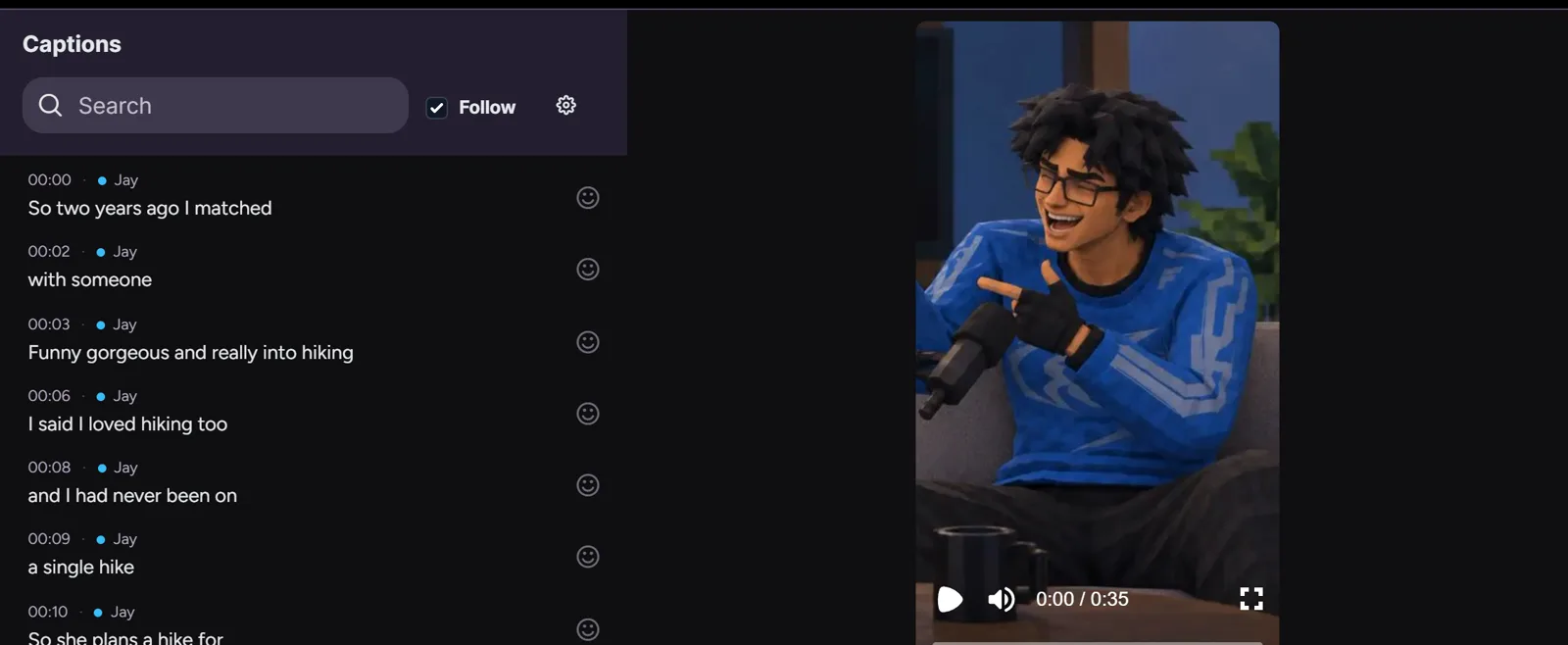
Doing it by hand, the quickest way is to read the transcript rather than rewatch the episode. Skim for the lines that made you or your guest react, write down their timestamps, and give each one a few seconds of lead-in.
If the episode is already on YouTube, your audience has done some of this work for you. The moments viewers replay and the moments they comment on are strong candidates, because people have already shown they care about them.
Step 2: Reframe for vertical
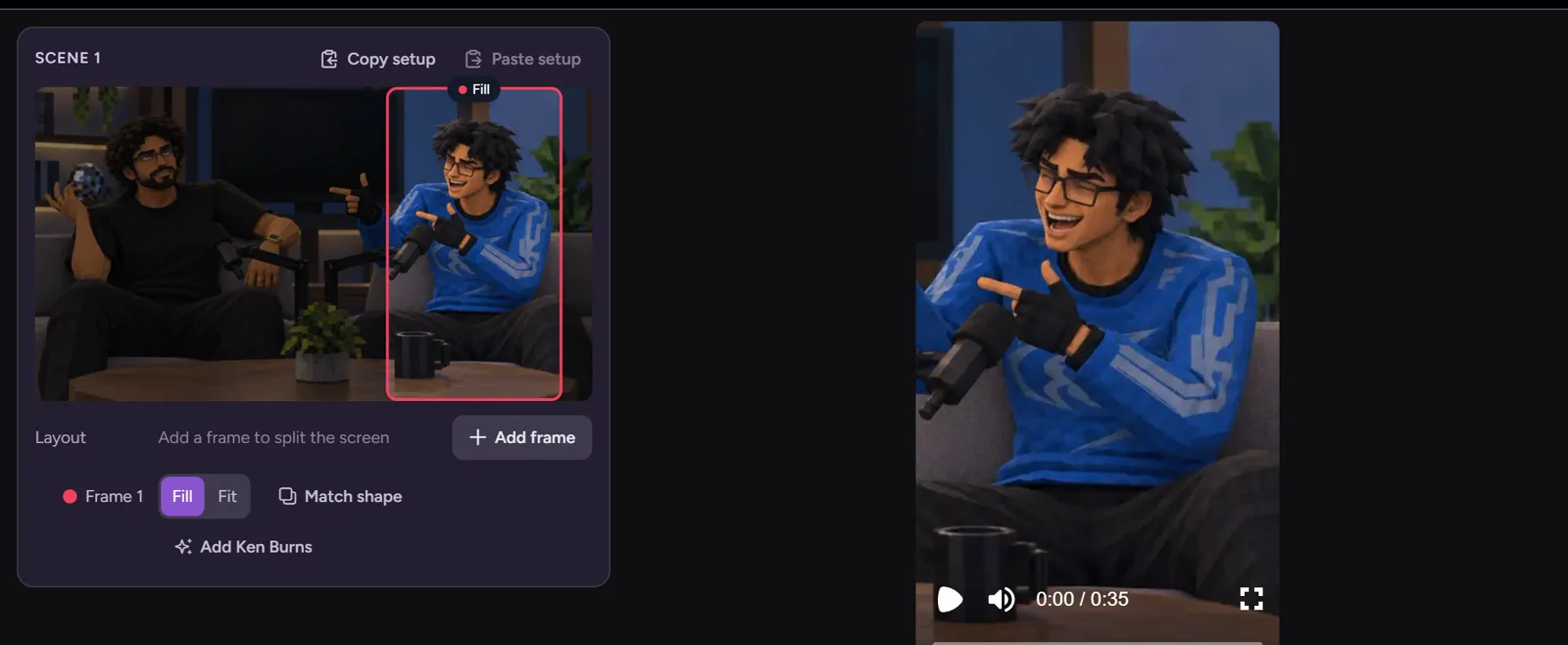
Podcasts are usually recorded in widescreen 16:9, and short-form platforms want vertical 9:16. A centre crop works for a single speaker who stays still. For two or more people on camera, you need to follow whoever is speaking, or stack the speakers one above the other, so no one ends up half out of frame.
Step 3: Add captions
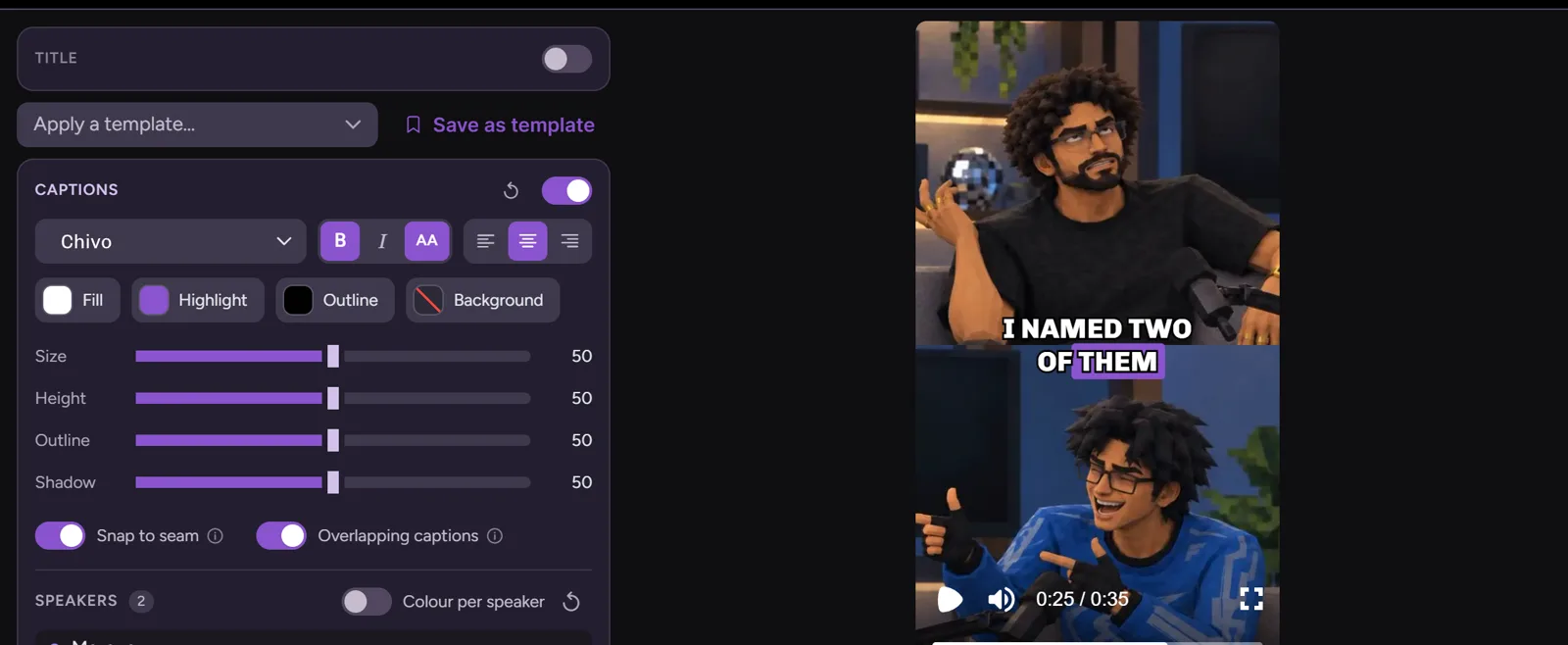
Many people watch short video with the sound off, so captions do a lot of the work of keeping them watching. Bold, word-by-word captions that highlight the key words are the current norm. Check names and jargon by hand: speech-to-text gets them wrong most often.
Step 4: Export and post
Export each clip at 1080p or higher in 9:16. Give each one its own caption on the platform, ideally the hook line restated, and space them out: one episode can fill a week or more of posts.
Doing it in one step with Kondense
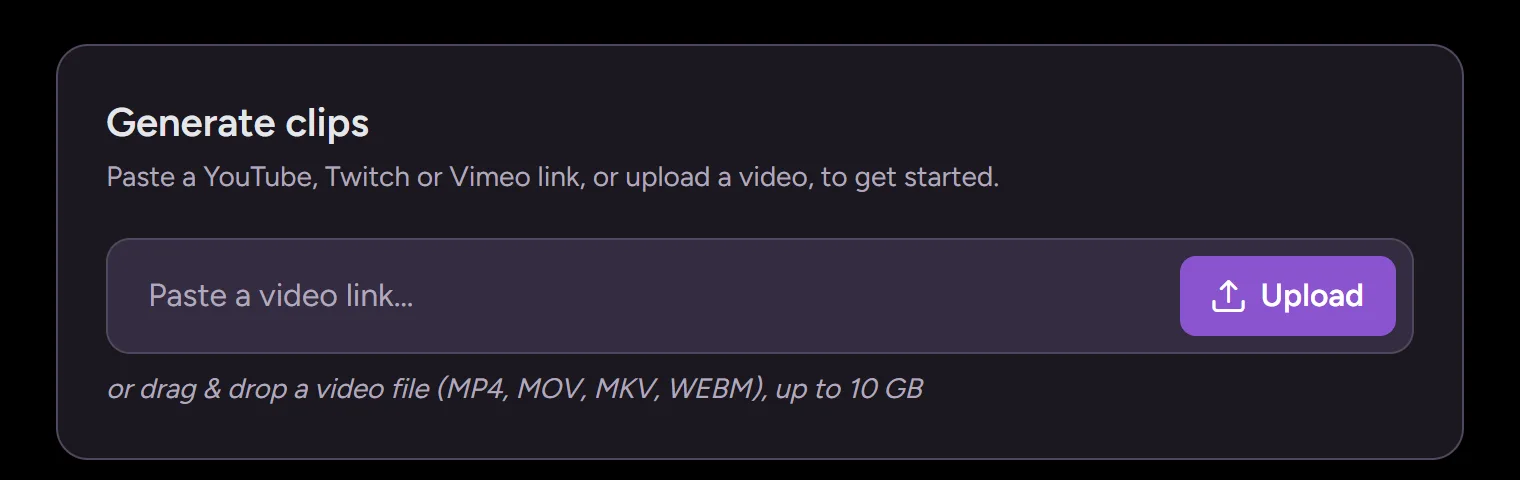
Kondense is an AI clip generator built for long videos like podcast episodes. Upload the episode, or paste its YouTube, Vimeo or Twitch link, and it:
- Picks the moments. AI reads the whole transcript and looks for complete thoughts, strong hooks and quotable lines. For an episode on YouTube, you can instead clip the moments your viewers replayed most, or commented on most.
- Frames every clip. Auto framing finds the faces in each scene and keeps them centred, in vertical 9:16, square 1:1 or widescreen 16:9.
- Captions every clip, with word-accurate animated captions in a choice of styles.
- Hands you up to 30 clips per episode, ready to download.
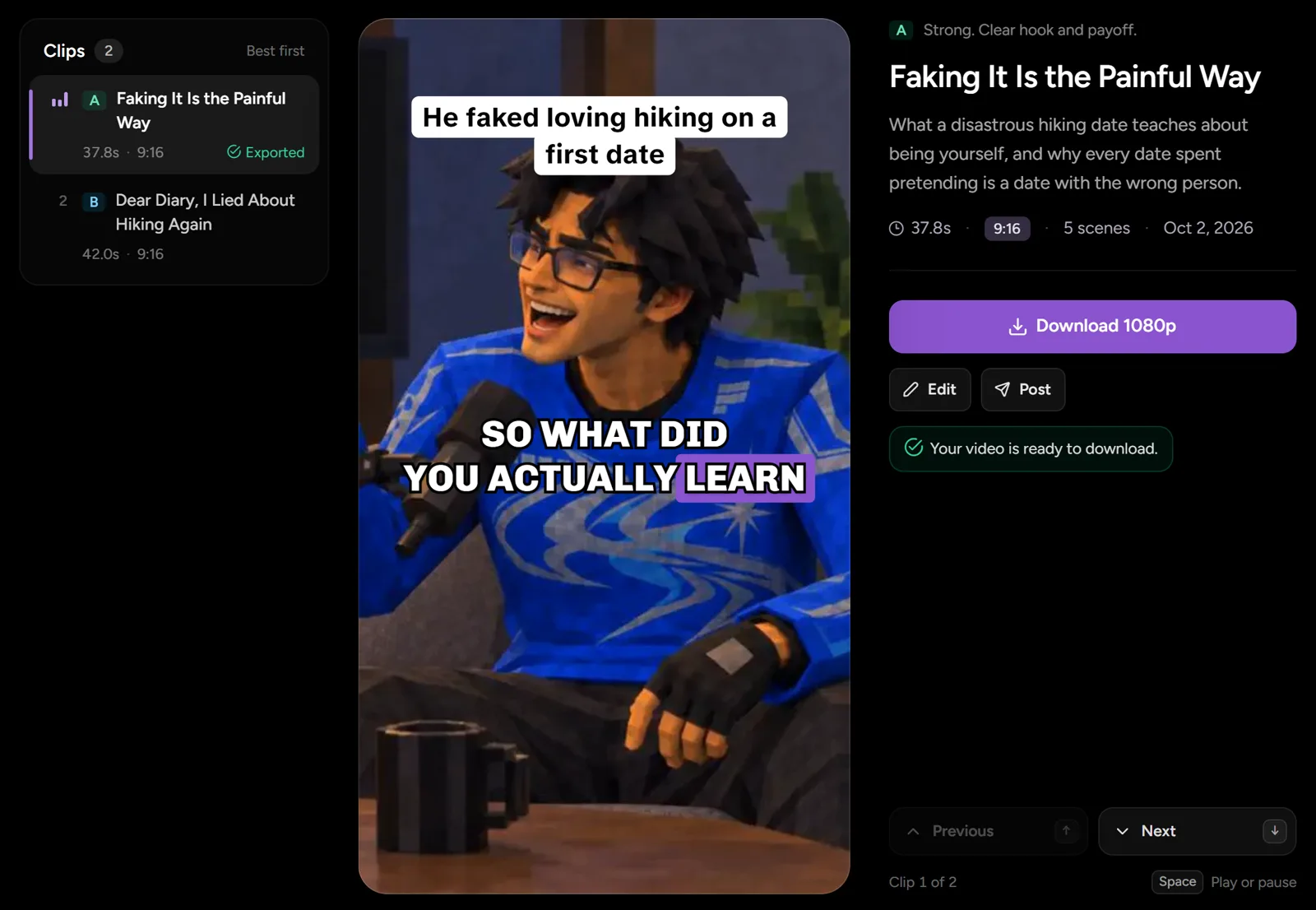
Episodes can run up to 3 hours, and uploads can be up to 10 GB. Your first episode is free at any length up to 3 hours, with no card and no watermark. See how it works for podcasts.